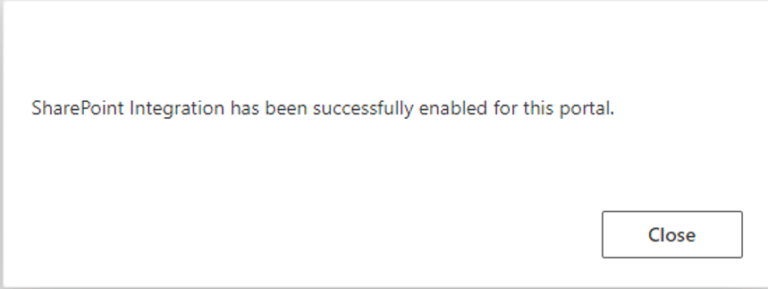
The setup screen can be seen here…
Once setup has completed, Go to Application tab inside Dynamics 365 Administration Center.
Now you can see the Omnichannel for Customer service.The setup screen can be seen here…

Follow these steps to resolve this issue:
PRE-REQUISITES:
- The CRM user needs to be an Office 365 Global Administrator to be able to access the Office 365 Admin center and thus enable the SharePoint integration with MS Portal.
- The integration between Dynamics CRM and SharePoint should already exist.
I have provided a step-by-step explanation of how to accomplish the integration below.
Step 1: Go to Microsoft 365 admin center and select Azure active directory.
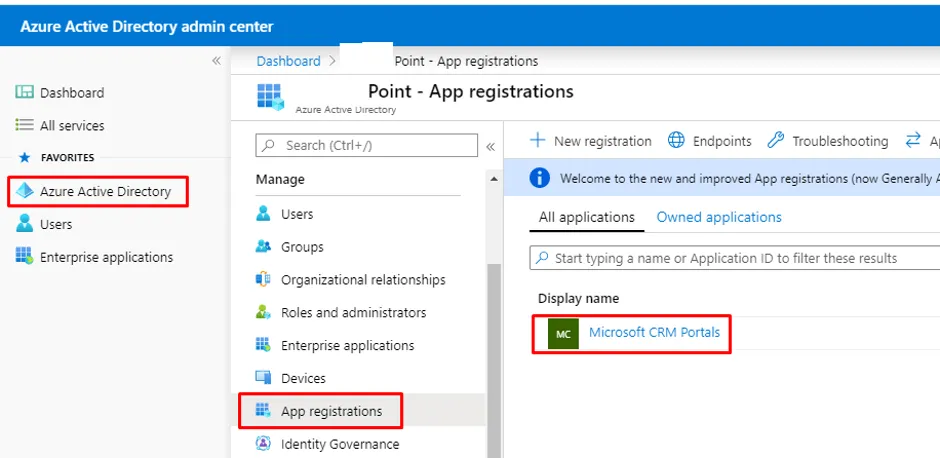
Step 2: Go to Azure active directory -> Select App Registrations -> Click on Microsoft CRM Portals.
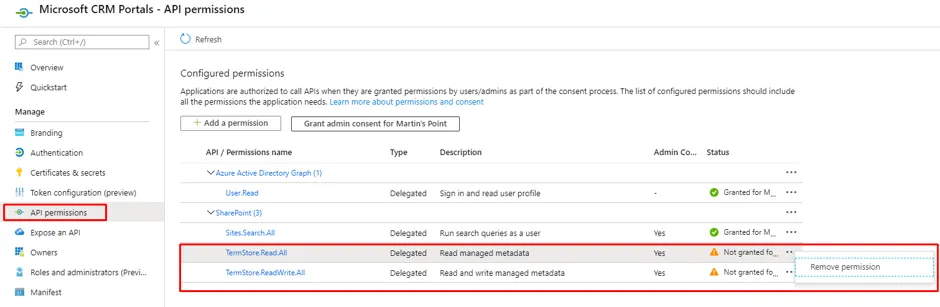
Step 3: Click on API permissions, so will find all the permissions list as you can see in the below image that some permissions are not granted. To remove them click on remove permission option.
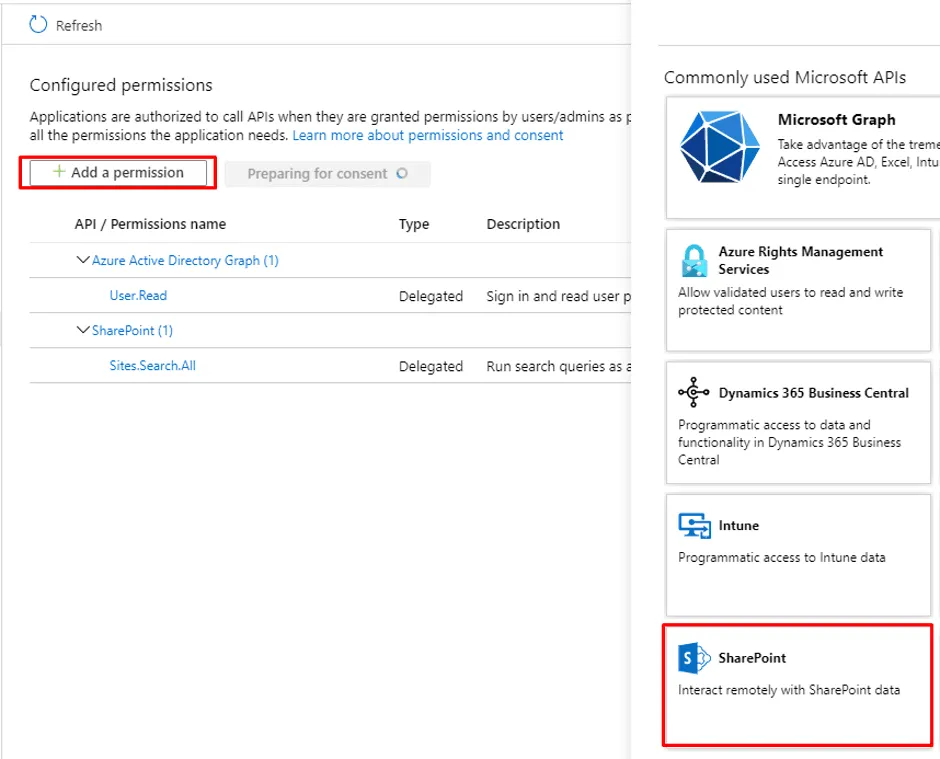
Step 4: Click on Add a permission button and then click on SharePoint.
Step 5: Click on the Delegated Permission option and select all the permissions you required.
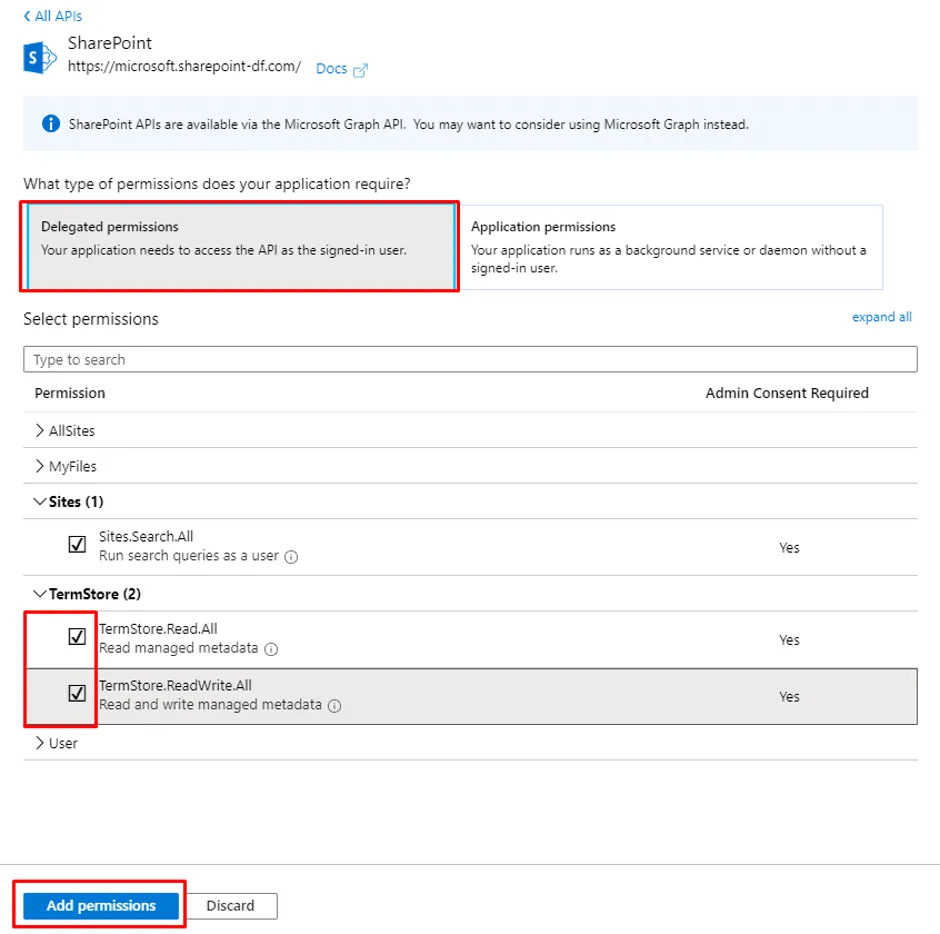
Step 6: Don’t forget to grant admin consent, it will take some time to enable on API Permission page.
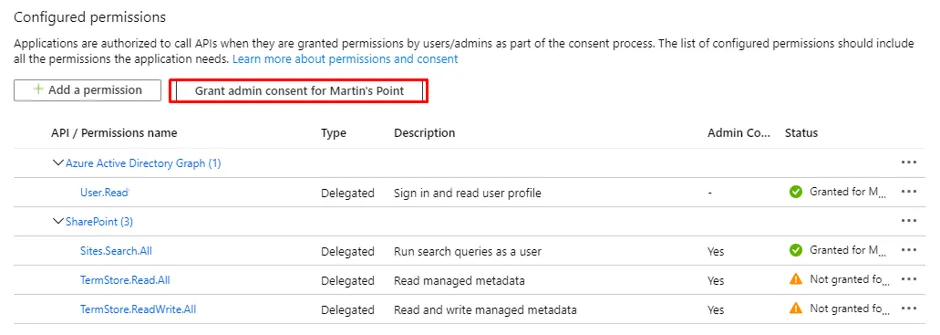
Step 7: It will add the required SharePoint permissions, respectively. Also, you will be redirected to the Azure AD application to provide your consent for the changes.
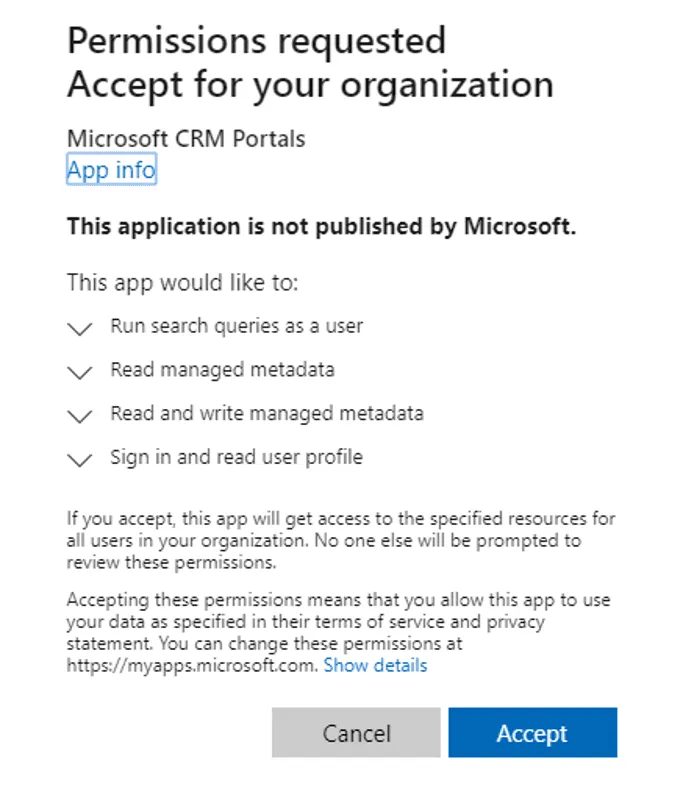
If you do not provide your consent:
-
SharePoint integration cannot be enabled or disabled without displaying an error message.
-
Your out-of-the-box Azure AD login on the portal will not work.
Step 8: Now go to PowerApps Portal Admin Center and click on Enable option again as we have done in the initial stage.
It will ask for permission as mentioned in step 8. Click on the Accept button. Now a message will appear when SharePoint integration is enabled successfully.